Skip to content
Dakila

How work moves.

Six flows, end to end, with every hand the work passes through named. Leave, a certificate, a payroll cycle, a missed punch, a vacant plantilla item, and the Personal Data Sheet.

Who touches what

Four kinds of account. Most of your agency only ever holds the first one, and holds it on a phone. What each kind cannot reach is enforced by the server on every request, not by hiding a menu.

Every employee

Their own record, on a phone.

Can
File leave, record attendance, claim expenses, request documents, read their own payslips, view and download their own Personal Data Sheet, browse the staff directory.
Cannot
See anyone else's payslip, personal sheet or records. Reach any HR administration screen at all.

Supervisors

Their own record, plus the people who report to them.

Can
Everything an employee can, plus decide the requests of their own direct reports and see a team list.
Cannot
Decide requests belonging to staff who do not report to them. Reach HR administration screens.

HR staff

The HR queues.

Can
Work document requests, feedback, the plantilla register, training, and HR reporting.
Cannot
Reach payroll. Payroll is walled off from general HR staff deliberately, and we test that it stays walled off.

HR management

The full HR function, including payroll.

Can
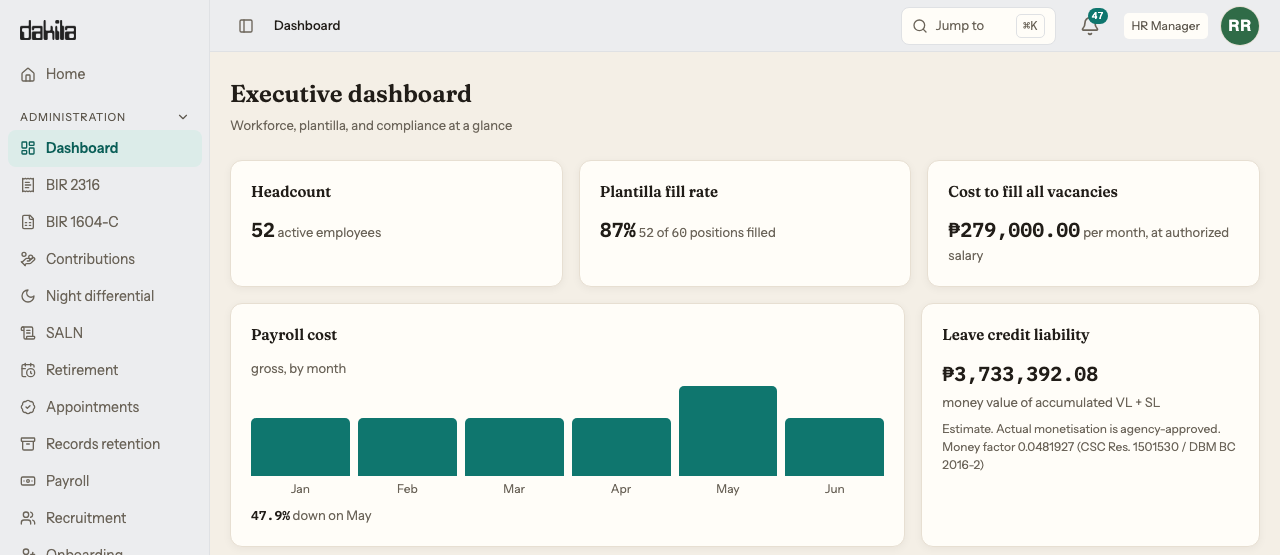
Everything above, plus payroll cycles, the annual BIR filings and the executive dashboard.
Cannot
Escape the audit log. Every export and print is recorded against the account that did it.

The transactions that make up the year.

Each one starts where the work actually starts and ends where the record is written. Where a flow crosses into something we have not built yet, it says so on the flow rather than in a footnote.

01

A leave request, filed and decided

Your staff stop walking a paper form between three desks, and the record an auditor asks for is already written by the time they ask.

  1. Employee

    Files from a phone browser: leave type, dates, reason. Their current balance is on the same screen, so they are not guessing.

  2. Dakila

    Routes it to the right approver. The employee does not have to know who that is, and HR does not have to tell them.

  3. Supervisor

    Sees it in one approvals inbox, alongside expense claims, shift changes and attendance corrections. Not four queues. Opens it, sees who filed it, the dates and the reason, and decides.

  4. Employee

    Sees the decision in their own list and is notified in the app. Nobody rings HR to ask whether it went through.

  5. Dakila

    Posts the days to the cumulative CSC leave ledger — the running record of every credit earned and used, which is what COA asks to see, rather than only a remaining balance.

Monetization is labelled an estimate everywhere it appears, with the CSC factor cited on the screen beside the figure. Approval routing and authorised amounts are your agency's to set.
02

A Certificate of Employment, requested and released

Nobody opens a filing cabinet, and nobody comes back a week later to ask whether it is ready yet.

  1. Employee

    Requests a Certificate of Employment and states the purpose. The form asks different questions depending on the document type — a travel authority needs things a certificate does not.

  2. HR

    Picks it up from the document requests queue, processes it, and releases it. One tracked loop, not an email thread.

  3. Dakila

    Generates the document from the employee's own record, so the certificate and the 201 file cannot disagree with each other.

  4. Employee

    Downloads the released document themselves. HR does not print it, sign for it, or walk it anywhere.

03

A payroll cycle, run and filed

The year-end filings stop being a fortnight of rebuilding figures in a spreadsheet, because they are assembled from the payroll you already ran.

  1. Payroll officer

    Runs the cycle for the period. Semi-monthly means the first-to-fifteenth and the sixteenth-to-month-end split, not a rounded half.

  2. Dakila

    Computes GSIS, PhilHealth and Pag-IBIG on every slip, employee and employer share, with PERA as a standard line. Mid-Year Bonus, Year-End Bonus and Cash Gift appear by name.

  3. Payroll officer

    Changes an employee's salary grade or step and re-runs. Every contribution and the net recompute. Nothing is retyped, so nothing is mistyped.

  4. Dakila

    Produces the Salary Register and the Bank Remittance report out of that same run, which is why the two can never disagree.

  5. Employee

    Opens the payslip on a phone with year-to-date totals, and downloads it as a PDF without asking anyone.

  6. HR

    At year end, generates BIR 2316 per employee and the 1604-C alphalist — as a spreadsheet a finance officer can sum, and as the .DAT file in the required layout — aggregated from the slips already submitted.

Your agency's own NBC salary schedule loads at onboarding. We ship none. Step increments and the Notice of Salary Increment are built on engagement, because they depend on your rating cycle.

04

A missed punch, corrected

The monthly attendance record stops being reconstructed from memory at cut-off, and every change to it has a name attached.

  1. Employee

    Checks in and out from a phone. Built for a thumb, and geofenced, so a check-in from somewhere else is not silently accepted.

  2. Employee

    Finds a day with no record or the wrong times, and files a correction with a reason rather than asking HR to edit it for them.

  3. Supervisor

    Decides it from the same approvals inbox that carries their leave requests.

  4. Dakila

    Writes the corrected day to the monthly attendance calendar with the approval trail attached to it. Who changed the record, and on whose authority, stays answerable.

Feeding your existing biometric terminals into this directly is built on engagement. It depends entirely on which terminals you own and what they can export, so we scope it against your actual hardware rather than quote it blind.

05

A vacant plantilla item, filled

The question your agency head asks every budget season — how many funded positions are sitting empty, and where — is a screen rather than a week of collation.

  1. HR

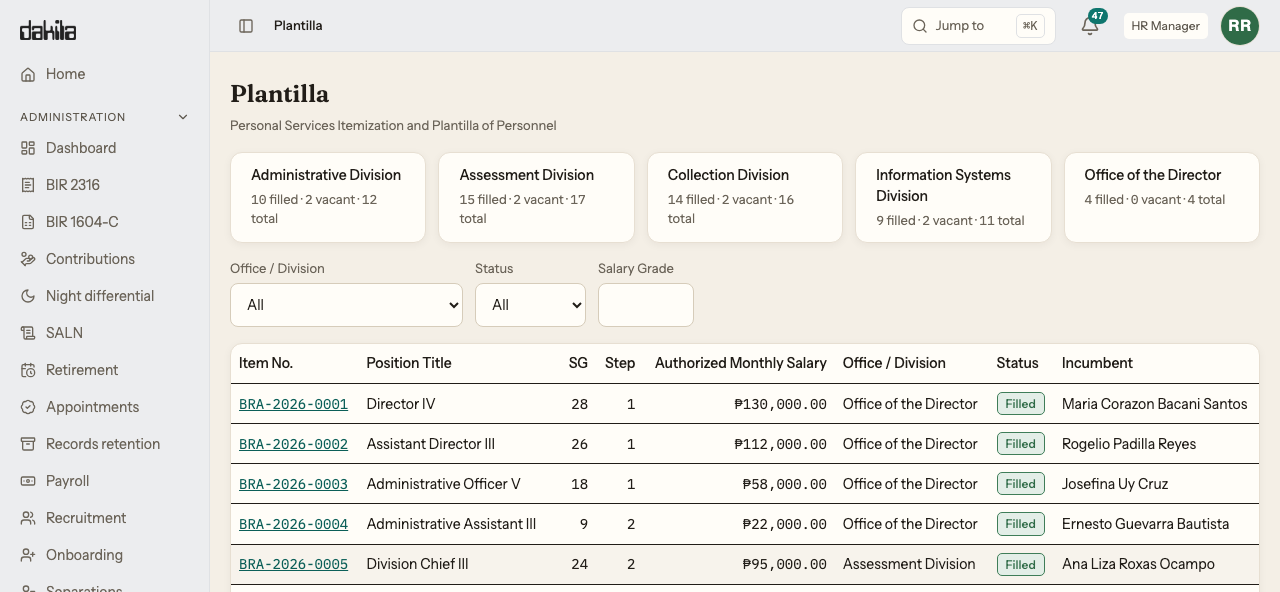
    Opens the register and sees the item as vacant: item number, salary grade, step, authorised salary, and the Qualification Standards attached to that item.

  2. HR

    Posts the opening and works applicants through the hiring pipeline in one place.

  3. Dakila

    Checks the appointee's eligibility against that item's Qualification Standards at appointment, rather than after someone notices.

  4. HR

    Runs onboarding to a checklist that ends in a real employee record, not a row in a spreadsheet someone has to transcribe later.

  5. Dakila

    Updates service history and rolls the item up as filled — per office, per division, and agency-wide, the way DBM asks for it.

Original, promotion and transfer appointments are in the product today and update service history automatically. The remaining CSC appointment types under ORAOHRA — detail, secondment, reinstatement, reemployment, coterminous, casual and contractual — along with their revocation and invalidation rules and the CS Form 33-B print, are specified and scoped but built on engagement. We build them against your agency's actual practice rather than guess at it in advance.

06

The Personal Data Sheet, kept current

The form your office retypes for every employee, every time it is needed, is entered once and printed on demand.

  1. HR

    Enters the CS Form 212 once — all eight sections, civil service eligibilities, family background, voluntary work, and the Q34 to Q40 disclosures. Not a subset.

  2. Dakila

    Holds eligibilities, training and voluntary work as structured records rather than free text, so they can be searched and reported on instead of read one file at a time.

  3. Employee

    Opens their own sheet from self-service and downloads the PDF, without asking anyone. Read access is ceilinged by role, so colleagues do not browse each other's disclosures.

  4. HR

    Prints the faithful four-page CS Form 212 that a CSC reviewer recognises — and it was checked by a person opening the file and reading all four pages, not by a test confirming a file appeared.

Approvals fit your agency, in one of two arrangements

Every flow above that needs a decision runs through the same approvals machinery, and that machinery is configured to how your office actually works rather than to how ours assumed it would.

Simple

The supervisor sees the request and approves or rejects it. One step, done. This is what most offices want for leave and attendance corrections, and it is what most offices already do on paper.

  1. Employee files the request
  2. Supervisor approves or rejects
  3. Decided. The employee is notified.

Routed

The request travels through named stages — your stages, with your names on the buttons. A request can sit at an intermediate stage where it is neither finished nor refused, and the employee sees that state described in words rather than as a blank or an internal code.

  1. Employee files the request
  2. Your first stage, under your name for it
  3. Held between stages, described in words the employee understands
  4. Your final stage
  5. Decided. The employee is notified.
Which arrangement suits you is a question for onboarding. Offices with a division chief and an HRMO signing in sequence usually want routed. Offices where the immediate supervisor decides usually do not, and adding stages they do not need is how a system starts getting worked around.

The flow nobody demonstrates

The system saying no, which we test as carefully as the system saying yes.

Every flow above has a shadow: the same screens, reached by someone not entitled to them. A vendor will happily walk you through an approval. Ask to see a refusal.

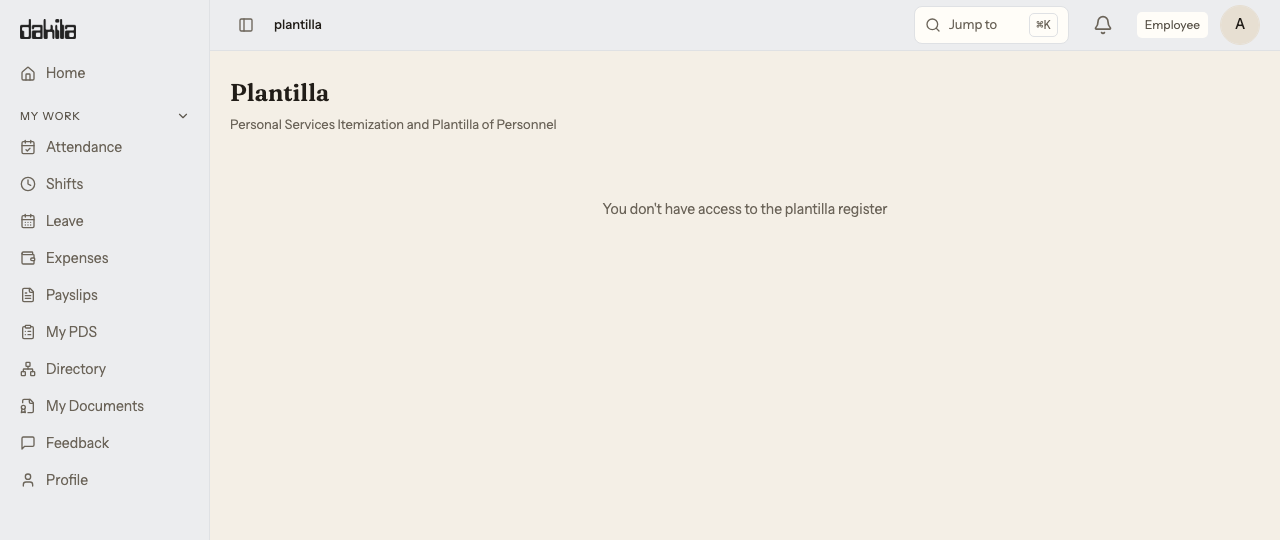
We sign in as an ordinary employee with no HR role and type the direct address of each administration screen in the product’s navigation — payroll, recruitment, separations, the plantilla, the executive dashboard, the BIR forms. For each one we check three things, and all three have to hold.

The refusal is explicit

A clear message that you are not permitted. Not a blank screen, not a spinner that never resolves.

The refusal offers nothing

No New, no Refresh, no View. Nothing clickable around the message. A refusal with a live button on it is a finding, and an important one.

You are not bounced

The address you typed is still the address in the bar. Silently redirecting you elsewhere hides whether the refusal happened at all.

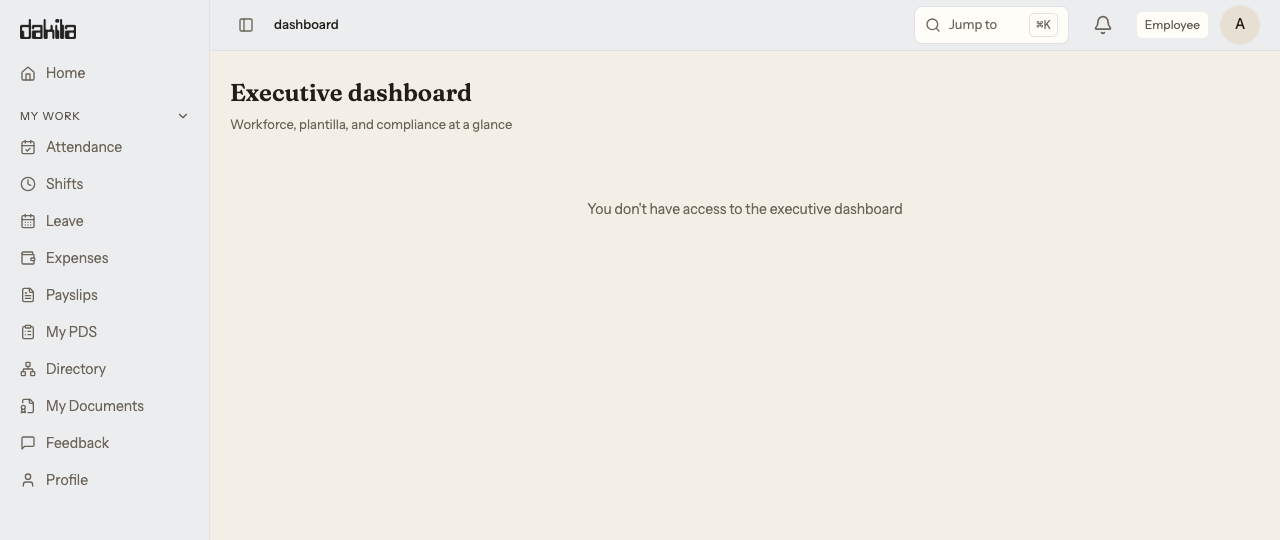
The executive dashboard opened by an employee account. The sidebar shows only a My Work section with Attendance, Shifts, Leave, Expenses, Payslips, My PDS, Directory, My Documents, Feedback and Profile, and no Administration section. The page body reads: You don't have access to the executive dashboard. Nothing on the page is clickable.
The executive dashboard, opened by an ordinary employee. No Administration section in the navigation, and nothing on the page to act on.
The plantilla register opened by the same employee account, reached by typing the address directly. The address stays in the bar and the page reads: You don't have access to the plantilla register. No buttons or links are offered.
The plantilla register, same account, address typed straight into the bar. The address is still the one that was typed.

We run the same sweep against HR accounts for the payroll screens, because payroll is walled off from general HR staff and a wall you never test is a wall you are guessing about. Findings from that sweep are written down with their severity and fixed before release.

How the permissions themselves are enforced is on the architecture page.

Bring the flow you are most sceptical about.

A walkthrough runs about half an hour on a fictional bureau with a full plantilla and a live payroll cycle. If one of the six above is the one your office fights with, say so when you request and we will have it open.

Request a walkthrough